 Meganz
MEGA Automatic Backups: Proven Setup Guide
Why MEGA Automatic Backups Are Essential for Your Data
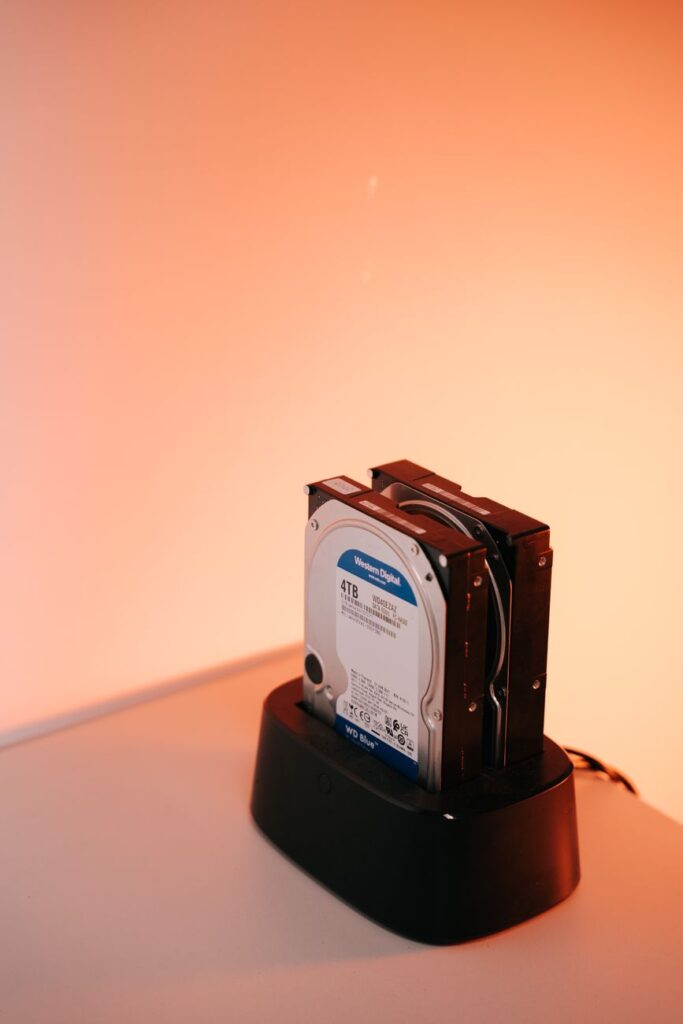
MEGA automatic backups are a game-changer for anyone who values their digital files. In today’s fast-paced world, losing important documents, photos, or work projects can be devastating. That’s why setting up a reliable backup system is not just a luxury—it’s a necessity. MEGA offers a robust cloud storage solution that can automate this process, ensuring your data is always safe and accessible.
With MEGA’s end-to-end encryption, your files are protected from prying eyes, giving you peace of mind. But the real magic lies in its ability to automatically sync and back up your data without manual intervention. Whether you’re a professional managing client work or a student safeguarding thesis drafts, MEGA automatic backups provide a seamless safety net.
This guide will walk you through every step, from installation to advanced settings, so you can harness the full power of MEGA. By the end, you’ll have a proven backup strategy that runs silently in the background, ready to save the day when you need it most.
Getting Started with MEGA Automatic Backups
Before diving into the setup, it’s important to understand the core components. MEGA offers desktop apps for Windows, macOS, and Linux, as well as mobile apps for iOS and Android. The desktop app is your primary tool for automatic backups, as it allows continuous syncing of selected folders.
Installing the MEGA Desktop App
First, download the MEGA desktop app from the official website. Run the installer and follow the prompts. Once installed, sign in with your MEGA account. If you don’t have one, you can create it directly within the app. The free tier offers 20 GB of storage, which is generous for personal use.
After signing in, you’ll be prompted to choose a local folder to sync with your MEGA cloud. This is your primary sync folder. Any file you place here will automatically be uploaded to MEGA and kept in sync across all your devices.
Setting Up Your First Backup Folder
To maximize efficiency, create dedicated folders for different types of data—like ‘Documents’, ‘Photos’, or ‘Projects’. Right-click on any folder in your system and select ‘MEGA Sync’ to add it to your sync list. This way, you can back up specific directories without moving them from their current location.
For example, if you have a folder of client contracts on your desktop, simply right-click and choose ‘MEGA Sync’. MEGA will upload it and keep it updated automatically. This is the essence of MEGA automatic backups—effortless and continuous.
Advanced Backup Options for MEGA Users
While basic syncing is great, MEGA offers more advanced features to tailor your backup experience. Let’s explore some of these to ensure you’re getting the most out of your setup.
Using MEGA’s Backup Feature
MEGA’s desktop app includes a dedicated ‘Backup’ feature that goes beyond simple syncing. It allows you to schedule backups at specific times or intervals, which is perfect for those who want a more controlled approach. You can set it to back up every hour, daily, or even weekly, depending on your needs.
To access this, open the MEGA app, go to ‘Backups’, and click ‘Add Backup’. Choose the folder you want to back up, and then select the schedule. You can also choose to keep multiple versions of files, which is a lifesaver if you accidentally overwrite a document.
Syncing Across Devices
One of the standout benefits of MEGA is its cross-platform support. After setting up automatic backups on your desktop, install the MEGA app on your phone or tablet. Your files will be available on the go, and any changes you make on one device will sync across all others. This is particularly useful for remote workers who need access to files from anywhere.
For more tips on syncing, check out our guide on syncing files across devices with MEGA. It covers advanced sync settings and troubleshooting.
Maximizing Storage and Bandwidth for Backups
Automatic backups can eat up storage and bandwidth quickly, especially if you’re backing up large media files. Here’s how to manage that effectively.
Storage Management Tips
MEGA offers several paid plans with larger storage capacities. But before upgrading, review your backup folders. Exclude temporary files, downloads, or anything you don’t need to preserve. Use MEGA’s selective sync feature to only back up essential folders on your desktop, saving space.
Additionally, MEGA’s ‘Smart Cache’ feature can help manage local storage by keeping only the most recent files on your device while storing older versions in the cloud. This is a clever way to balance local and cloud storage.
Bandwidth Optimization
If you have limited bandwidth, you can throttle MEGA’s upload and download speeds in the settings. This ensures your backups don’t interfere with your daily internet usage. For more detailed strategies, read our article on maximizing MEGA bandwidth limits.
Security Considerations for Automatic Backups
Security is at the heart of MEGA’s service. With end-to-end encryption, your data is encrypted before it leaves your device, and only you have the decryption keys. This means even MEGA cannot access your files. For automatic backups, this is a huge advantage, as your data is protected both in transit and at rest.
To further enhance security, enable two-factor authentication on your MEGA account. This adds an extra layer of protection against unauthorized access. Also, regularly review your active sessions and revoke any that look suspicious.
For a deeper dive into encryption, see our explanation of MEGA’s end-to-end encryption.
Common Pitfalls and How to Avoid Them
Even with a reliable system, things can go wrong. Here are some common issues users face with MEGA automatic backups and how to solve them.
Folder Not Syncing
If a folder isn’t syncing, check if it’s still in your sync list. Sometimes, moving or renaming the original folder breaks the link. Re-add the folder by right-clicking and selecting ‘MEGA Sync’. Also, ensure the folder isn’t inside another synced folder, as MEGA doesn’t support nested syncs.
Backup Failures
Backup failures often occur due to network issues or insufficient storage. Check your MEGA storage quota and upgrade if necessary. Also, verify your internet connection is stable. If the problem persists, restart the MEGA app or reinstall it.
For more troubleshooting, our guide on recovering deleted files from MEGA can help, as it covers common data loss scenarios.
Integrating MEGA with Other Tools
MEGA can be integrated with various third-party apps to enhance its functionality. For instance, you can use automation tools like Zapier to trigger backups when certain events occur, or connect MEGA to your favorite productivity suite.
If you’re a freelancer or small business owner, integrating MEGA with your workflow can save hours. Check out our tips on MEGA for freelancers and backup strategies for small businesses for practical ideas.
For a list of compatible apps, our guide on MEGA integrations is a valuable resource.
Final Thoughts on MEGA Automatic Backups
Setting up MEGA automatic backups is a straightforward process that pays off immensely in data security and peace of mind. By following the steps outlined above, you can ensure your files are always backed up without lifting a finger. Remember to regularly review your backup settings and storage usage to keep everything running smoothly.
If you haven’t yet, consider upgrading to a MEGA premium account for more storage and features. And for a comprehensive overview of all MEGA has to offer, explore our top 10 features you aren’t using. Start your automatic backup journey today and never worry about losing data again.